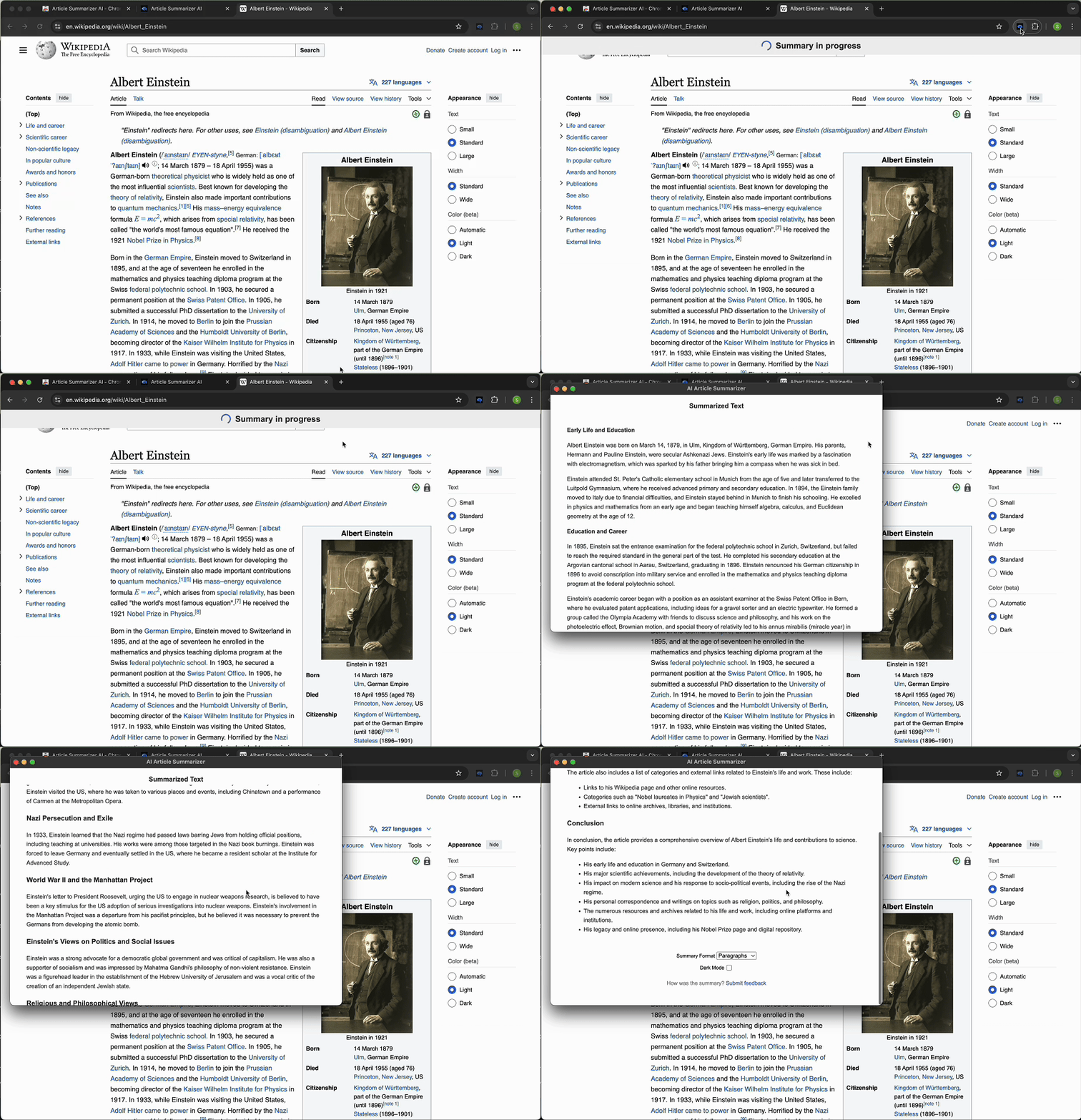
One click from webpage to summary
When you are on a guide, documentation page, newsletter, reference page, blog post, or other text-heavy webpage, open the extension and generate a summary of the current page.
Three ways to summarize webpage content
Use the workflow that fits the page: summarize this page from the current tab, highlight a section, or paste page text manually when you need a fallback.
- Current webpage: summarize the page you are viewing.
- Selected text: summarize only the section that matters.
- Manual paste: summarize readable text from pages that block automatic extraction.
Summarize this website before you commit to reading
Not every page is a polished article. Some websites are long documentation pages, comparison pages, resource hubs, or product pages. Use this workflow when you want to summarize this website quickly before deciding what deserves a closer read.
FAQ
Straight answers for the specific workflow this page covers.
How do I summarize the current webpage?
Install the Chrome extension, open a webpage with readable text, then use the extension to generate a summary of the current page.
Can I summarize this page without copying everything?
Yes. The Chrome extension is built so you can summarize the current webpage directly from your browser.
Can I summarize only part of a webpage?
Yes. Select the text you care about and summarize that section instead of the full page.
Can I summarize the page as bullets?
Yes. You can choose bullet summaries for quick scanning or paragraph summaries for a more natural overview.